

Have you ever received a shiny new gift card and wondered what to do next? If it is for Apple, you are in luck! You can use it to buy fun things like apps, games, movies, or even extra storage space for your phone. But first, you need to Redeem Apple Gift Card codes into your account. It is like putting cash into a digital wallet.
Doing this step safely unlocks your digital money right away. Let us walk through the steps together so you can start shopping without any stress.
Where to Find Your Gift Card Code
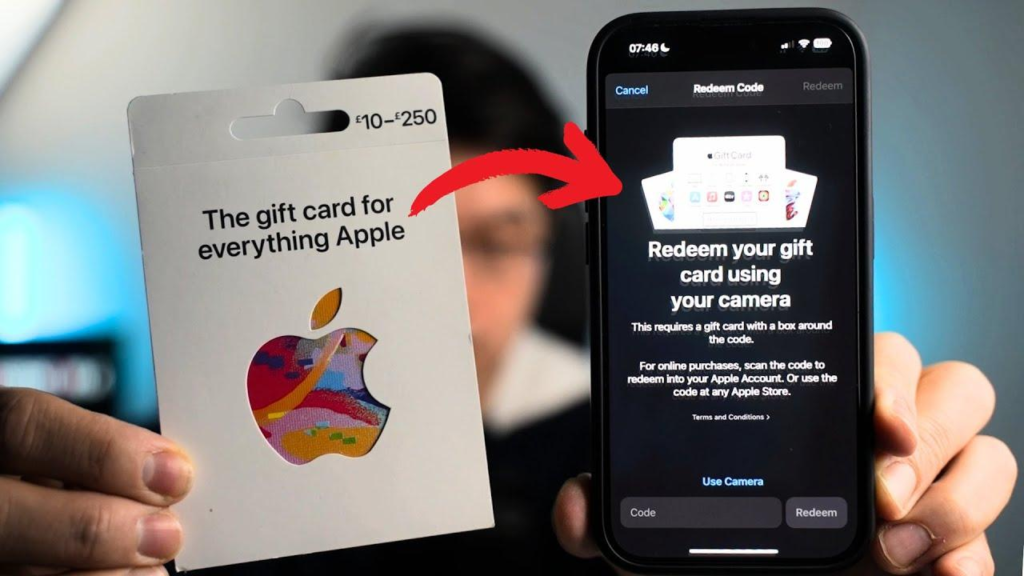
Before you start, flip your card over. You will see a long sequence of numbers and letters. Most of the time, this code starts with the letter X. You might need to gently peel off or scratch away a gray sticker to see the full redeem apple gift card string of numbers. Keep this code safe and handy for the next steps.
How to Redeem on Your iPhone
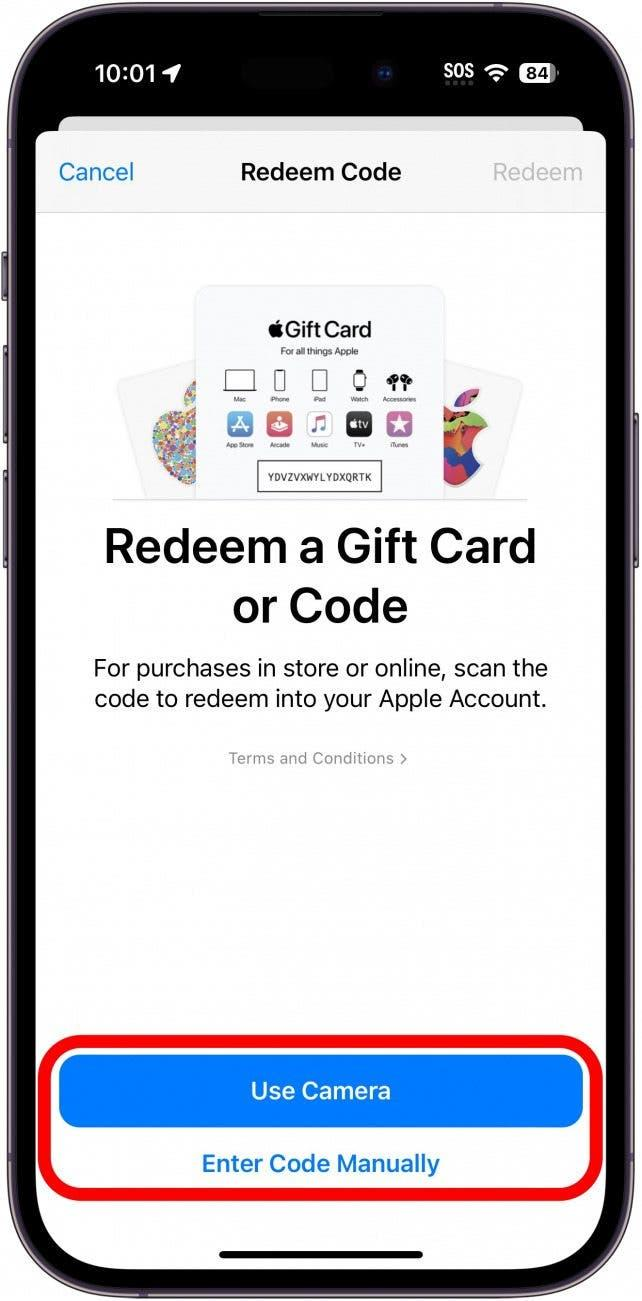
Your iPhone makes it super simple to redeem apple gift card credits directly through the official store app. First, tap on the App Store icon on your phone screen. Next, look at the top right corner and tap your profile photo or the sign-in button.
From there, select the option that says redeem gift card or code. You can use your phone camera to scan the code, or type it in manually. Tap confirm, and you are all set!
Adding Funds Using the Wallet App
Did you know you can also use your Apple Account card inside your digital wallet? This is a very neat trick. Open up your Wallet app on your phone and tap on your special account card.
Tap the small menu button, choose the redeem option, and let the camera read your code. This method automatically updates your balance so you can see your funds instantly alongside your credit cards.
Steps for Your iPad Users
Using an iPad works almost exactly the same way as an iPhone. Open up your App Store app to begin the redeem apple gift card process. Tap your profile picture at the top of the page to open your account settings.
Tap the redeem button, type in your code carefully using the keyboard, and hit finish. The funds will jump right into your account balance.
Redeeming on a Mac Computer
If you are sitting at your computer, you can still add your funds easily. Open up the App Store on your Mac desktop or laptop. Look at the bottom left corner and click on your name or your profile icon.
Click the text that says redeem gift card. The system might ask you to sign in with your password. Once you do, type in your card code and click redeem.
What to Do on a Windows PC
Do not worry if you use a Windows computer instead of a Mac. You can still redeem apple gift card values easily. Just open up your Apple Music app or your Apple TV app on your PC.
Look down at the sidebar and click your name, then choose the redeem option. Type in your 16-digit code and apply it to your account.
Checking Your New Account Balance
After you finish the redeem apple gift card steps, you will want to make sure the money is there. Open the App Store on your device and tap your profile photo.
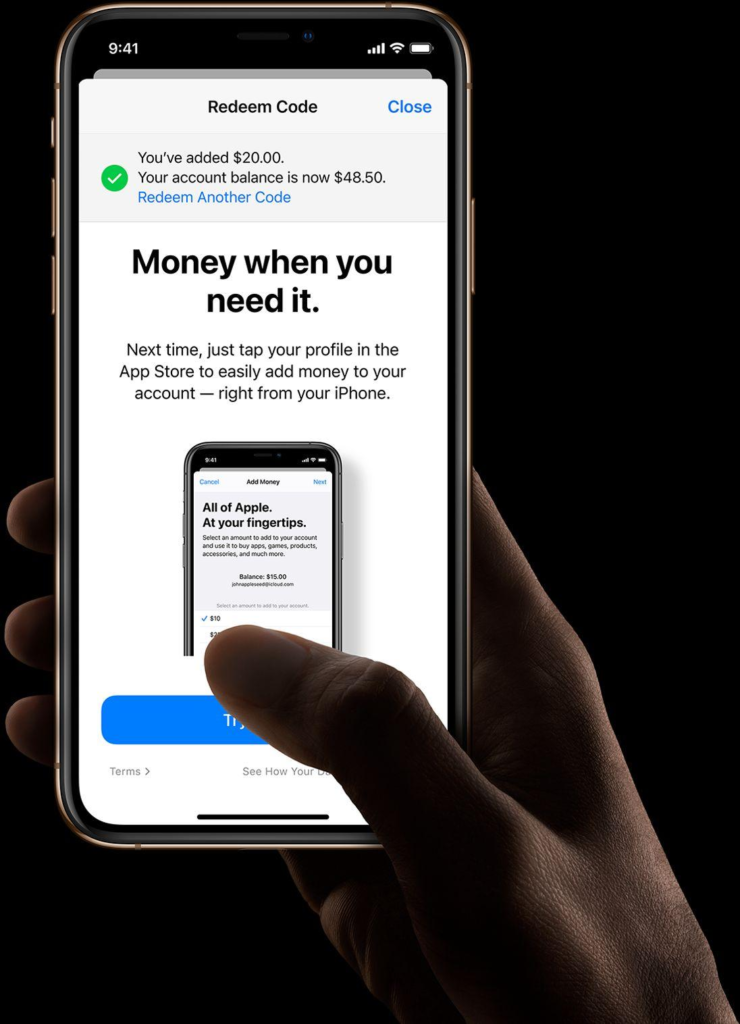
Right under your name, you should see your shiny new balance amount. If you do not see it right away, close the app and open it again.
What Can You Buy With Your Credit?
Now for the fun part! You can use your added funds to buy cool things. Grab fun paid apps, subscribe to fun games, or rent family movies.
You can also use this money to pay for extra iCloud storage or fun music streaming services. The choice is totally yours.
Fixing Common Troubleshooting Issues
Sometimes things do not work perfectly on the first try. If your code does not scan, try typing the redeem apple gift card code by hand very slowly. Make sure the card is valid for your specific country or region. If the card says it is already used, double-check that you did not already log it into a family sharing account.
If the card is inactive, the store where you bought it needs to activate it at the register. Reach out to Apple support if you still see an error code.
Helpful Tips to Stay Safe
Always keep your physical card and receipt until the funds show up safely online. Never share your 16-digit code with strangers online who promise free prizes or cash. Treat your digital gift card balance just like real money in your pocket.
By staying smart, you protect your funds and enjoy safe digital shopping every time.
Frequently Asked Questions
Can I use my gift card to buy physical products?
No, you cannot use this balance to buy physical items like a new iPhone or accessories at an actual retail store. You can only use it for digital goods and services inside the store ecosystem.
Do Apple gift cards expire?
No, these cards do not expire. You can keep your card in a drawer for a long time before you decide to add it to your digital balance.
Can I transfer my balance to a friend?
You cannot send your digital balance directly to another person’s account. However, you can use your balance to buy digital content as a gift for someone else.
What if my code is unreadable?
If the code is damaged, take clear pictures of the front and back of the card. Reach out to official customer support with your store receipt so they can help you out.
Do I need a credit card on file?
Sometimes the system asks you to have a credit card on file for security reasons, even if you are paying for an app using your gift card balance.
Can I undo a gift card redemption?
No, once you apply the 16-digit code to your account balance, it cannot be undone or turned back into a physical card.
Conclusion
Adding your digital funds is a quick and easy process that opens up a world of fun entertainment. By following these easy steps, you can safely redeem apple gift card balances on any of your devices in just a few minutes. Go ahead and grab your card, log into your profile, and treat yourself to something special today.
